
What you need for online Quran classes
A laptop or tablet, a normal home internet connection and a quiet corner. This page covers the details and a quick test so the first lesson starts on time.
 By Muhammad Areeb · Reviewed
What do you need for online Quran classes?
You need a laptop or tablet with a working camera and microphone, a stable internet connection and Zoom installed. Headphones make the teacher’s corrections clearer, especially for children. A phone works in a pinch, but a bigger screen makes the Qaida or Mushaf much easier to read.
- Device
- Laptop or tablet (phone as a backup)
- Audio
- Built-in microphone; headphones recommended
- Connection
- Stable home broadband or strong Wi-Fi
- Software
- Zoom app or a current browser
- Space
- A quiet spot with a table
Minimum and recommended setup for live lessons
Most homes already meet the minimum. The recommended column makes lessons smoother, mainly because the teacher can hear every sound clearly and you can see the page without squinting.
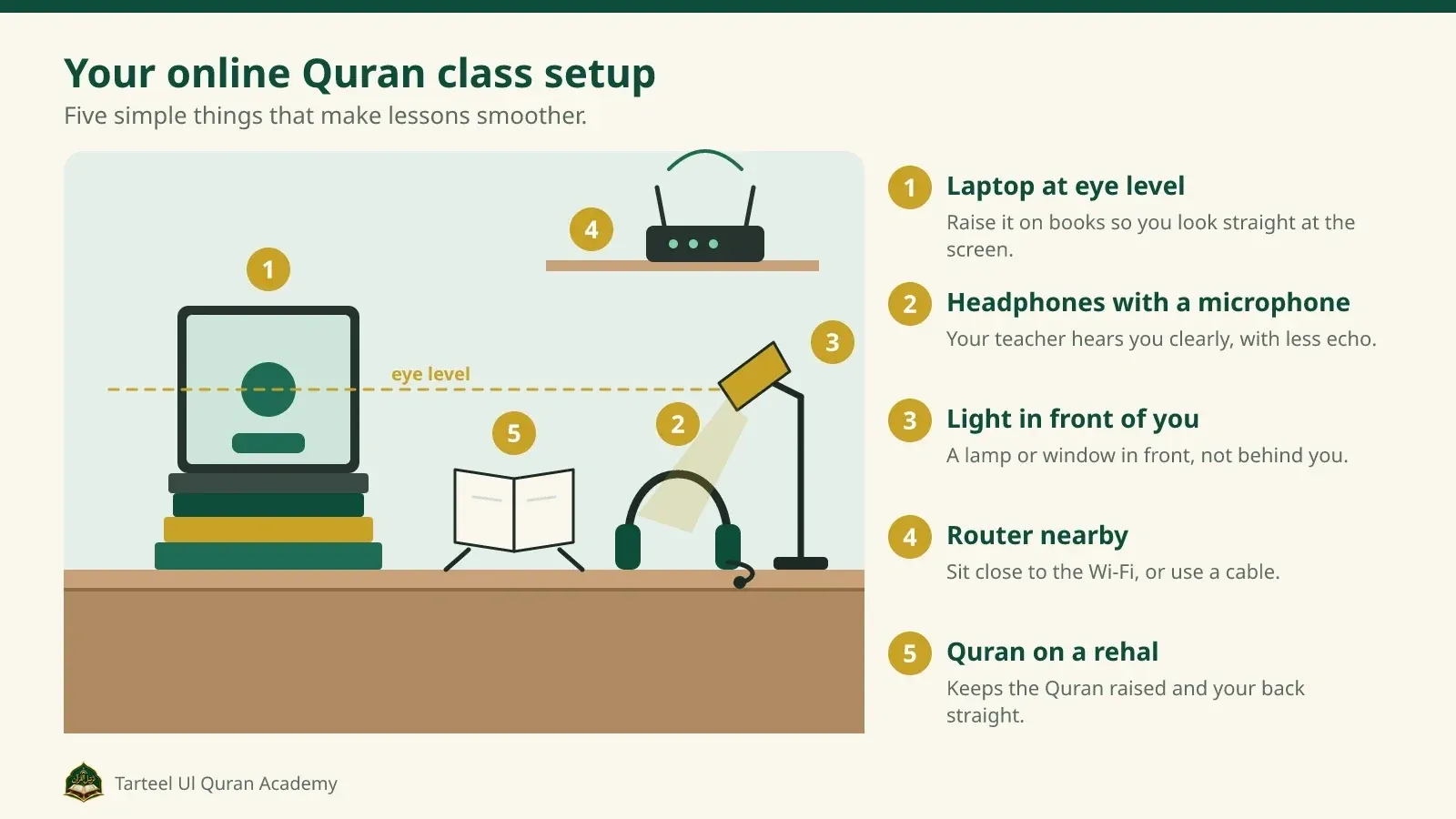
Setup for one-on-one online Quran lessons
| Item | Minimum | Recommended |
|---|---|---|
| Device | Smartphone | Laptop or tablet on a stand, at eye level |
| Camera | Built-in camera | Built-in camera with light in front of the learner, not behind |
| Audio | Built-in microphone and speaker | Headphones with a microphone, so corrections are clear |
| Internet | Stable connection for a one-to-one video call | Wired or close to the router; other streaming paused |
| Software | Zoom in a current web browser | The free Zoom app, kept up to date |
| Materials | The page shared on screen | Your own printed Qaida or Mushaf too |
| Space | Somewhere to sit | A quiet table, with the Quran on a rehal or clean raised surface |
How fast does the internet need to be?
For a one-to-one Zoom call, Zoom’s published requirements are about 600 kbps up and down for high-quality video and 1.2 Mbps up and down for 720p HD video. Screen sharing adds very little. Most home broadband is comfortably faster; what matters more is a stable connection, so sit near the router and pause big downloads during the lesson.
Which devices and browsers work?
Zoom lists Windows 10 (Home, Pro or Enterprise, not S mode) and Windows 11, macOS 10.15 or later, and current versions of Chrome, Firefox, Edge and Safari among its supported systems, plus iPad, iPhone and Android tablets and phones through the app. Figures from Zoom’s system requirements, checked October 2026.
Setting up a lesson space for a child
A child learns best in a calm, familiar spot where a parent can hear the lesson. Set it up once and use the same place every time, so sitting down at the table becomes part of the routine.
- Use a family room or a room with the door open, within earshot of a parent.
- Put the device on a table at eye level, not on a lap or a bed.
- Give your child headphones that fit; many children hear sounds more clearly with them.
- Have the Qaida or Mushaf, a pencil and a glass of water ready before the lesson starts.
- Close other apps and turn off notifications for the lesson.

Parents are welcome to sit in, especially in the first weeks. See Quran classes for kids for how lessons are shaped for children.
Test your setup the day before
- Install or update Zoom. Download the free app on the device you will use, or check your browser is up to date.
- Join a test call. Zoom offers a free test meeting at zoom.us/test to check your camera, speaker and microphone.
- Check the sound. Read a line aloud with headphones on and make sure your voice is clear.
- Set out your materials. Qaida or Mushaf, pencil and water on the table, notifications off.
Quick fixes for common lesson problems
Common problems and fixes
| Problem | Try this |
|---|---|
| The teacher cannot hear you | Check the microphone is not muted in Zoom and that the right microphone is selected |
| Your voice echoes | Use headphones, or turn the speaker volume down |
| Video freezes | Move closer to the router, pause downloads, or turn your own video off for a moment |
| The shared page is too small | Switch to a larger screen, or open your own printed copy |
| The call drops | Rejoin with the same link; if it keeps happening, message Muhammad on WhatsApp |
Devices, apps and connection
Still unsure? Send us a message. Replies 7 days a week.
Do we need to install Zoom?
Installing the free Zoom app on a laptop or tablet is the most reliable option. You can also join from a current web browser. Test your camera and microphone the day before your first lesson.
How fast does our internet need to be?
A normal home broadband connection is usually enough. For a one-to-one Zoom video call, Zoom’s published figures are about 1.2 Mbps up and down for HD video. Stability matters more than speed, so sit near the router and pause large downloads during lessons.
What if the call drops during a lesson?
Rejoin using the same link. If the problem continues, message Muhammad on WhatsApp so you can agree what to do with the rest of the lesson.
What should my child have ready for each lesson?
A laptop or tablet at eye level, headphones that fit, their Qaida or Mushaf, a pencil and a glass of water, in a quiet spot within earshot of a parent. Turning off notifications helps them focus.
Free 30-minute first lesson. No card or payment needed. Monthly plans, no long-term contract.